How to localize App Store screenshots with PixShots
Create English and Indonesian App Store screenshots from one PixShots project, then export both languages in a single ZIP.
Build one screenshot layout, then give each language its own headlines and app captures. Follow along with the Calory template in the free PixShots editor.
Make the English version first
Choose a template and replace the sample images with screenshots of your app. Write a short headline for each slide. For a meal tracker, the first two might be “Log a meal” and “See your daily totals.”
Add Indonesian and translate the slides
In the editor toolbar, open the language menu and choose Manage languages…. Add Indonesian, then open Translations… from the same menu. For this example, use “Catat makanan” and “Lihat total harian.”
Switch to Indonesian and preview each slide. If your app has an Indonesian interface, capture it and replace the images in those slides. Check that longer headlines fit and that the labels inside the device frames match the listing language.
Export both languages together
Open Export screenshots, pick your App Store sizes, and select both languages. Choose Stores for the folder structure and export. PixShots downloads a ZIP with images grouped by store, language, and size. Unzip it and upload each set to the matching localization in App Store Connect.
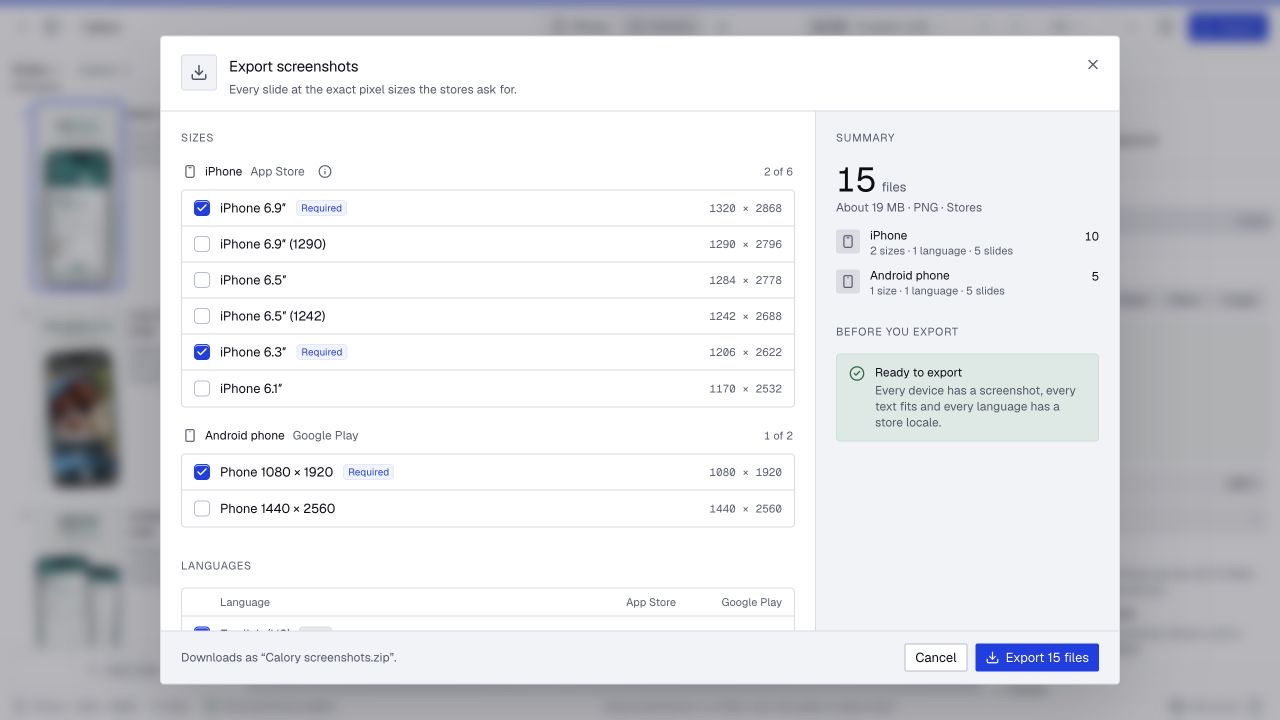
The export dialog lets you select device sizes and languages before you export.
Need to compare workflows before you start? Read the AppScreens alternatives guide.