PixShots guide
How to localize App Store screenshots
Build one screenshot layout, then give each language its own headlines and app captures. This walkthrough uses English and Indonesian. You can follow along with the Calory template in the free PixShots editor.
1. Make the English version first
Choose a template and replace the sample images with screenshots of your app. Write a short headline for each slide. For a meal tracker, the first two might be “Log a meal” and “See your daily totals”.
2. Add Indonesian and translate the slides
In the editor toolbar, open the language menu and choose Manage languages…. Add Indonesian, then open Translations… from the same menu. Translate the two example headlines as “Catat makanan” and “Lihat total harian”.
Switch to Indonesian and preview the slides. If the app itself has an Indonesian interface, capture that version and replace the images for the Indonesian slides. Check that the translated headlines fit and that the text inside the device frames matches the listing language.
3. Export both languages together
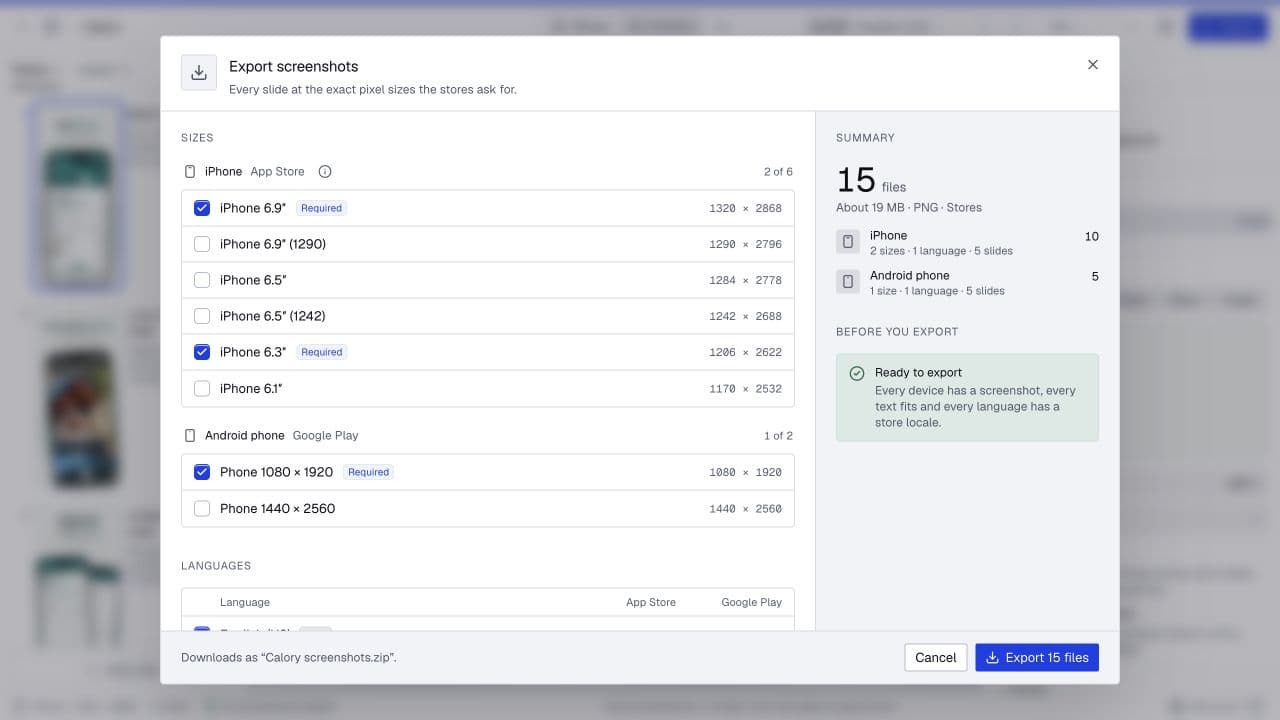
Open Export screenshots, select the App Store sizes you need, and select both languages. Choose Stores for the folder structure and export. The browser downloads a ZIP with images grouped by store, language and size. Unzip it, then upload each set to the matching localization in App Store Connect.
Open PixShots or browse more free tools from Pixilus Studio.